
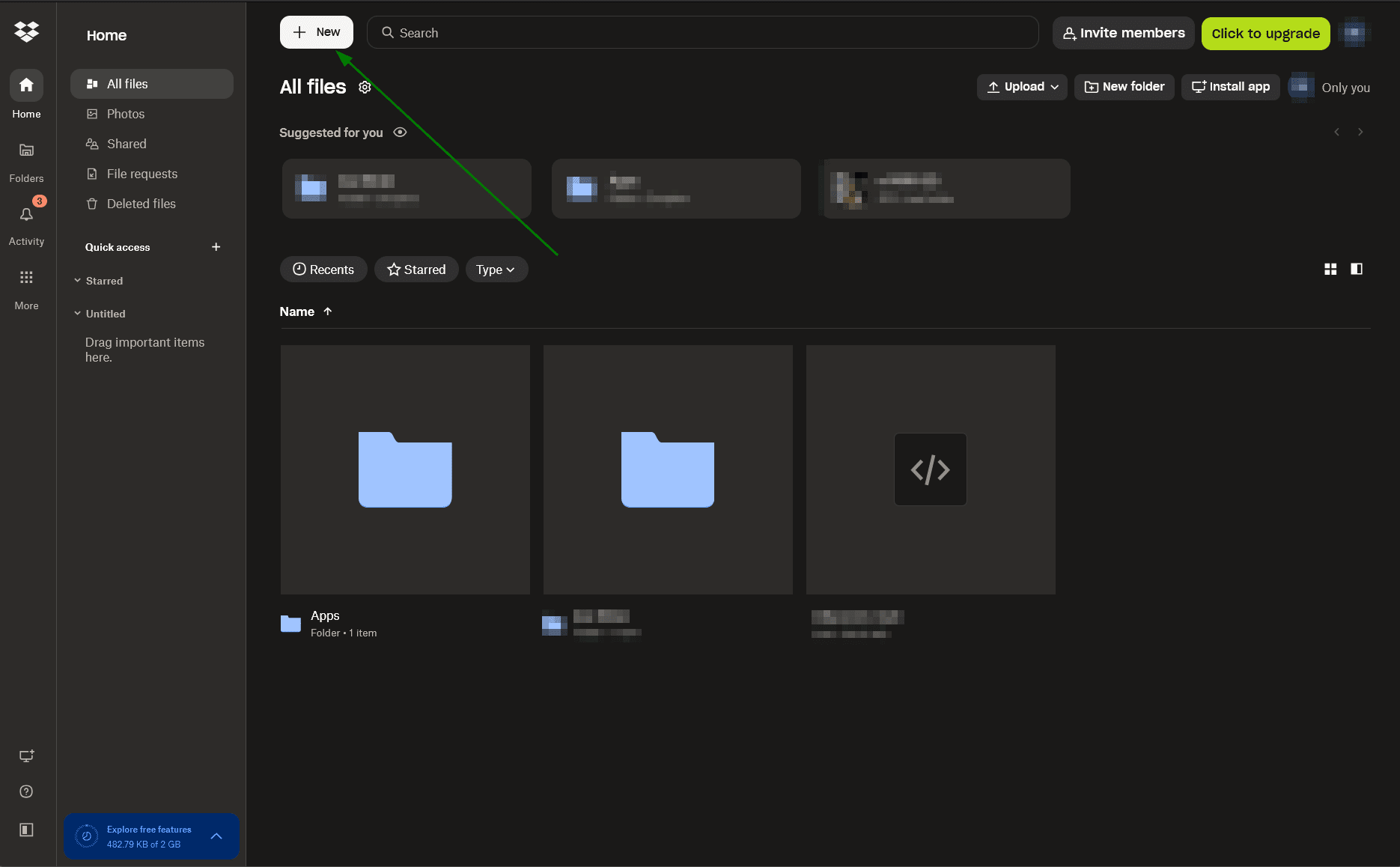
Step 1 — Open Dropbox and click the “+ New” button to create a new folder
Log in to your Dropbox account and click the + New button to get started.
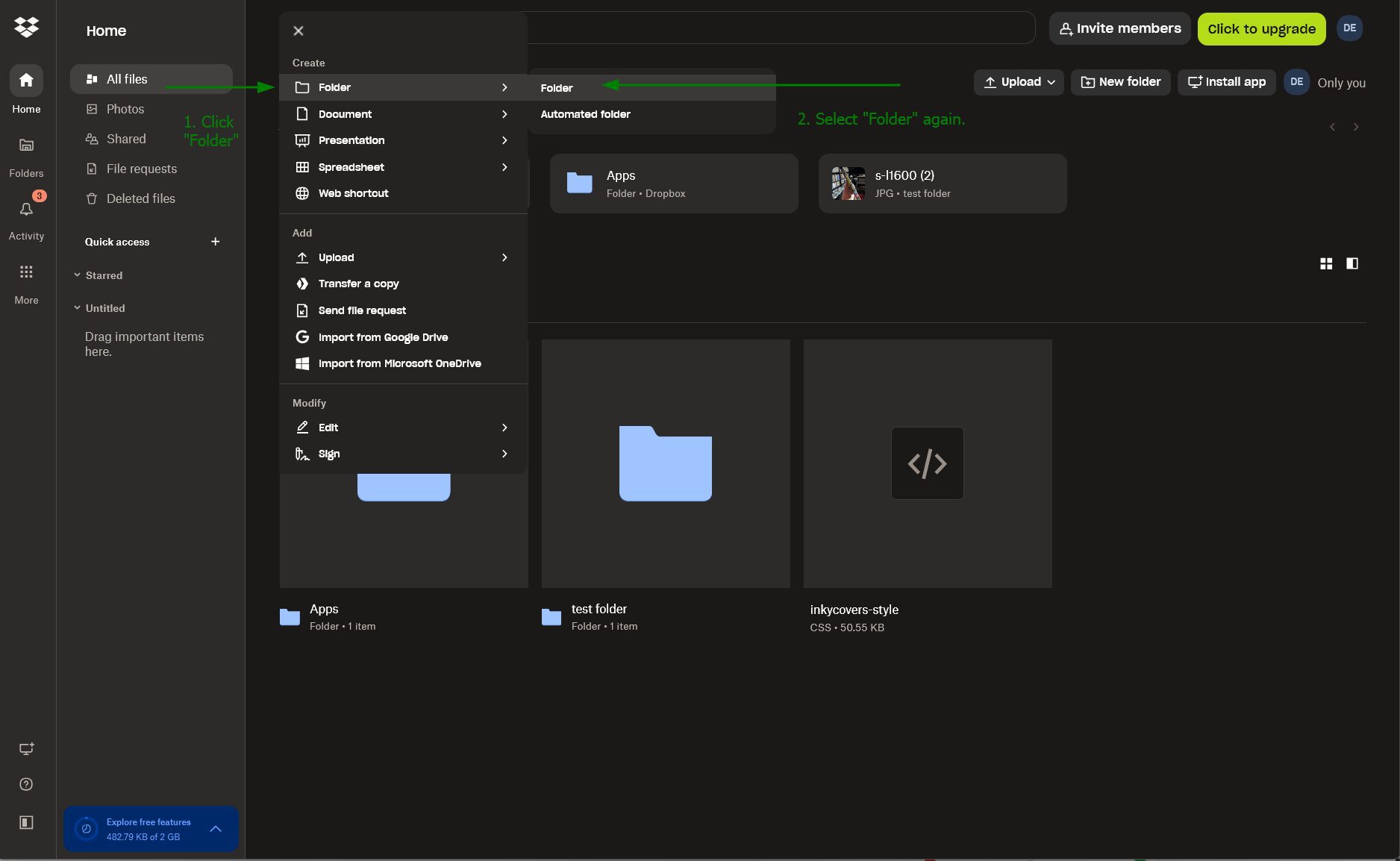
Step 2 — Click “Folder” from the dropdown then select “Folder” again
From the dropdown menu that appears, click Folder, then select Folder again to confirm.
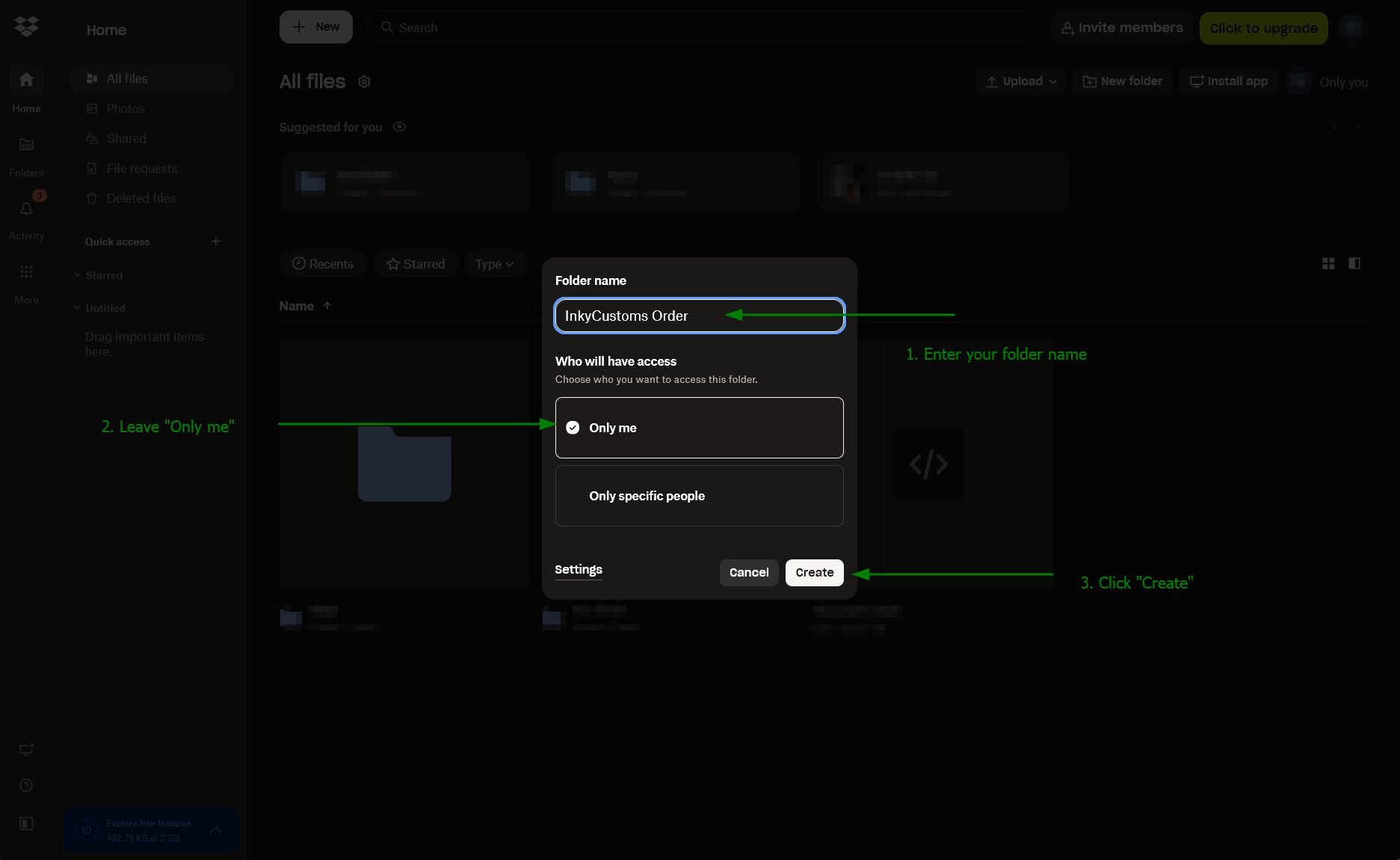
Step 3 — Enter your folder name (e.g. InkyCustoms Order), leave sharing set to “Only me” and click Create
Type a name for your folder — such as InkyCustoms Order — leave the sharing option set to Only me, then click Create.
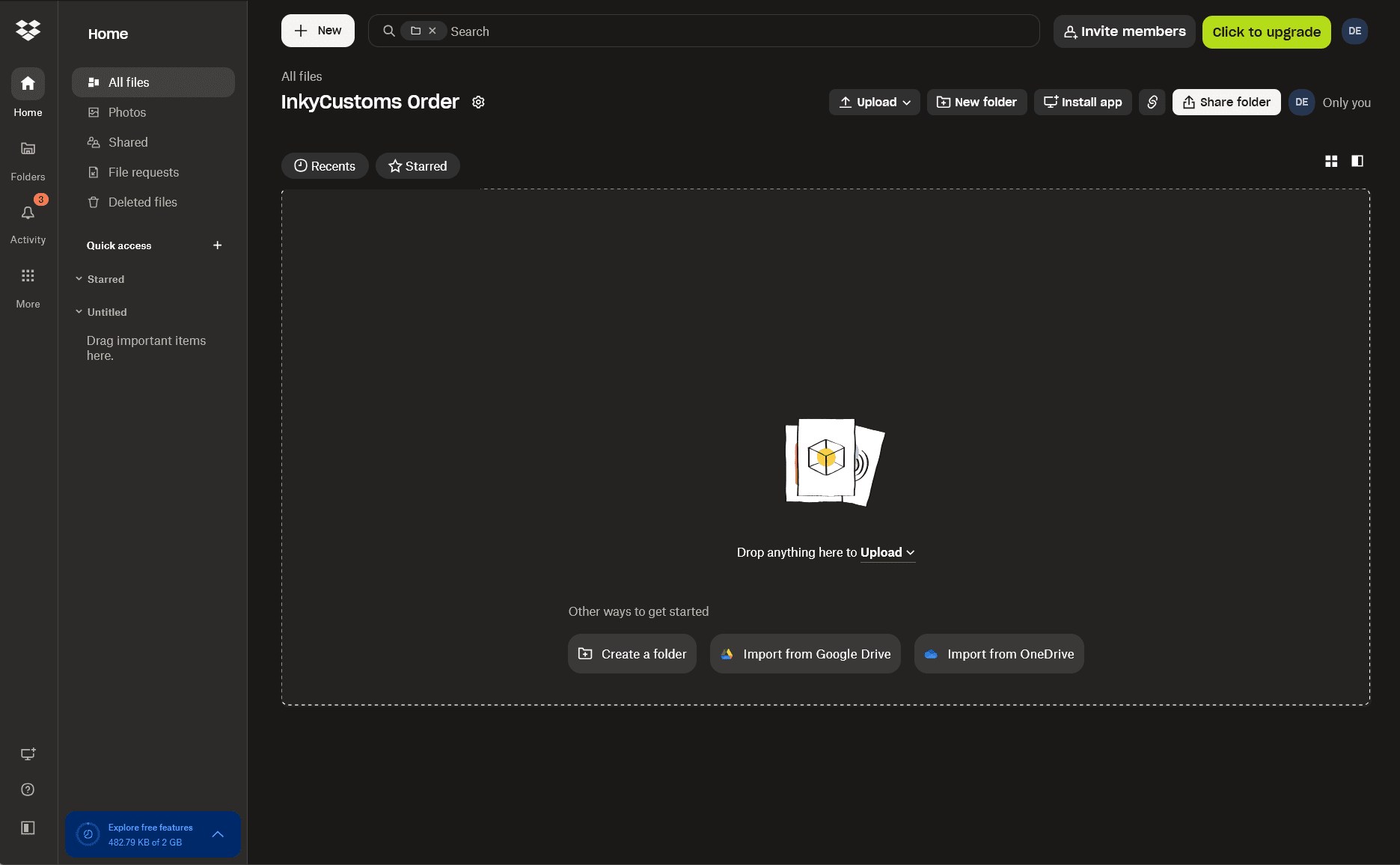
Step 4 — Your new folder has been created and is ready for files
Your new folder is now ready. You’ll see it appear in your Dropbox — it’s empty and waiting for your design files.
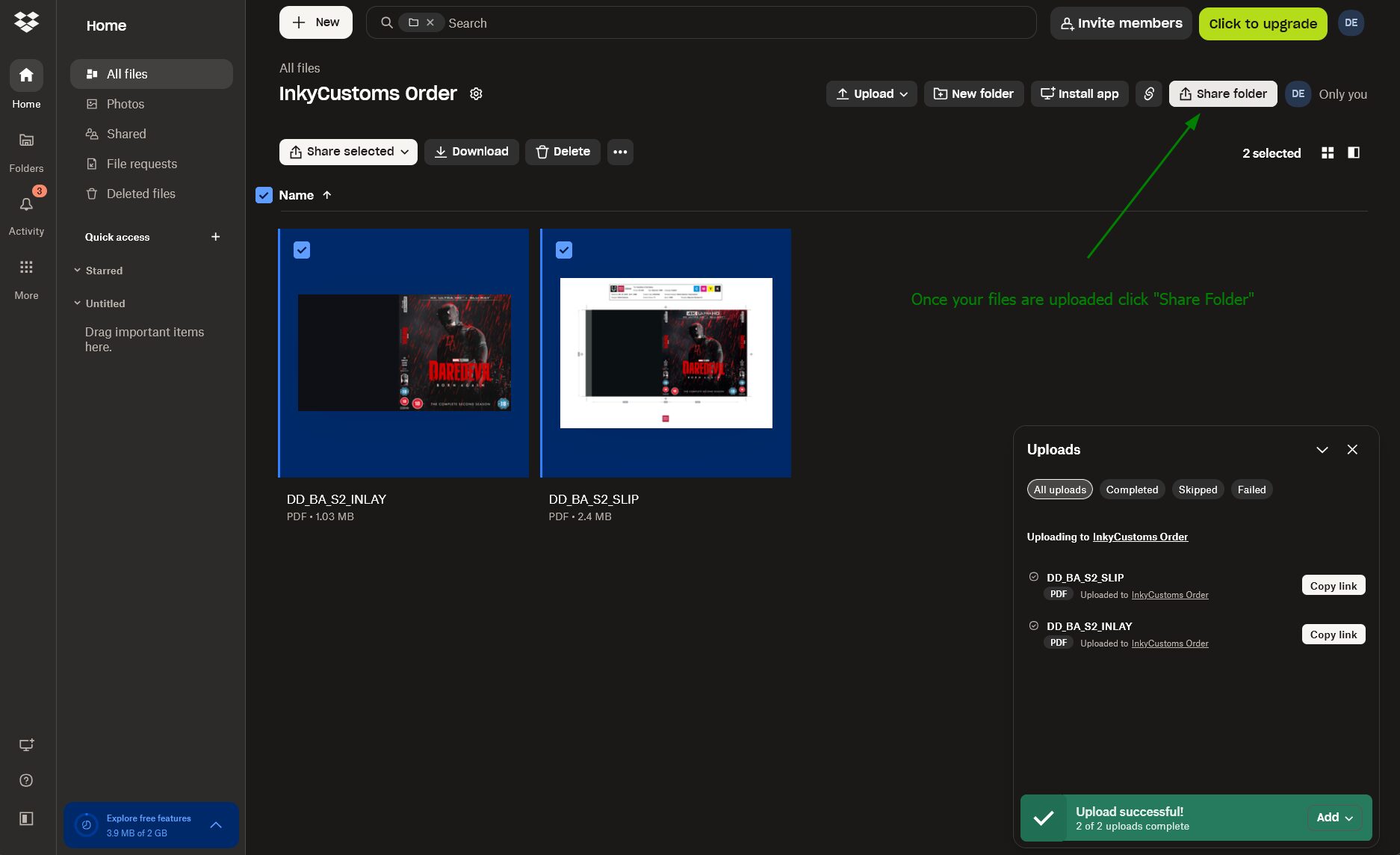
Step 5 — Upload your design files and once done click “Share Folder”
Upload your design files into the folder, wait for them to finish uploading, then click Share Folder.
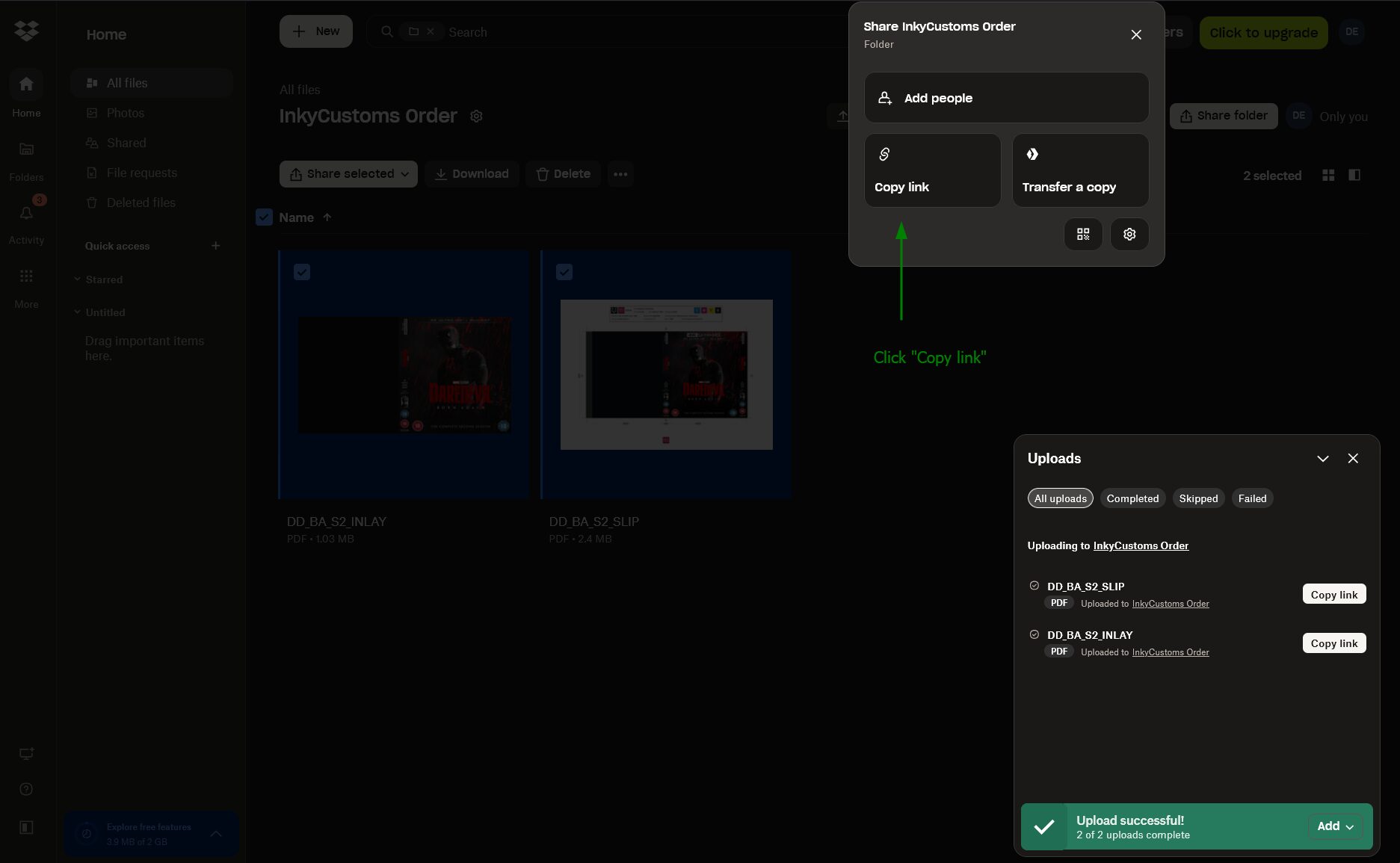
Step 6 — In the sharing dialog click “Copy link” to copy your shareable link
In the sharing dialog that opens, click Copy link to copy your folder’s shareable link to the clipboard.
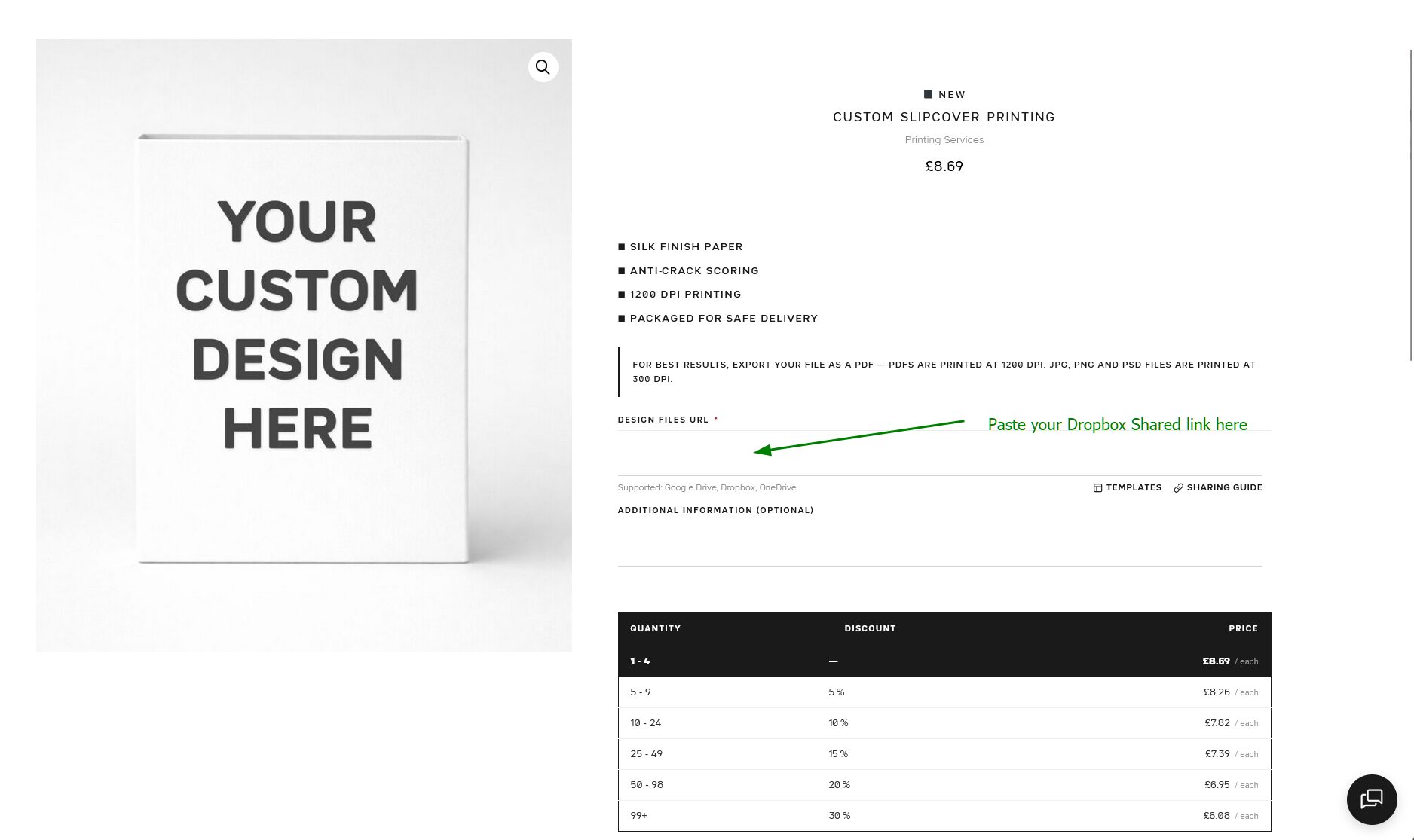
Step 7 — Go back to the InkyCustoms product page and paste your Dropbox link into the Design Files URL field
Return to the InkyCustoms product page and paste your copied link into the Design Files URL field.
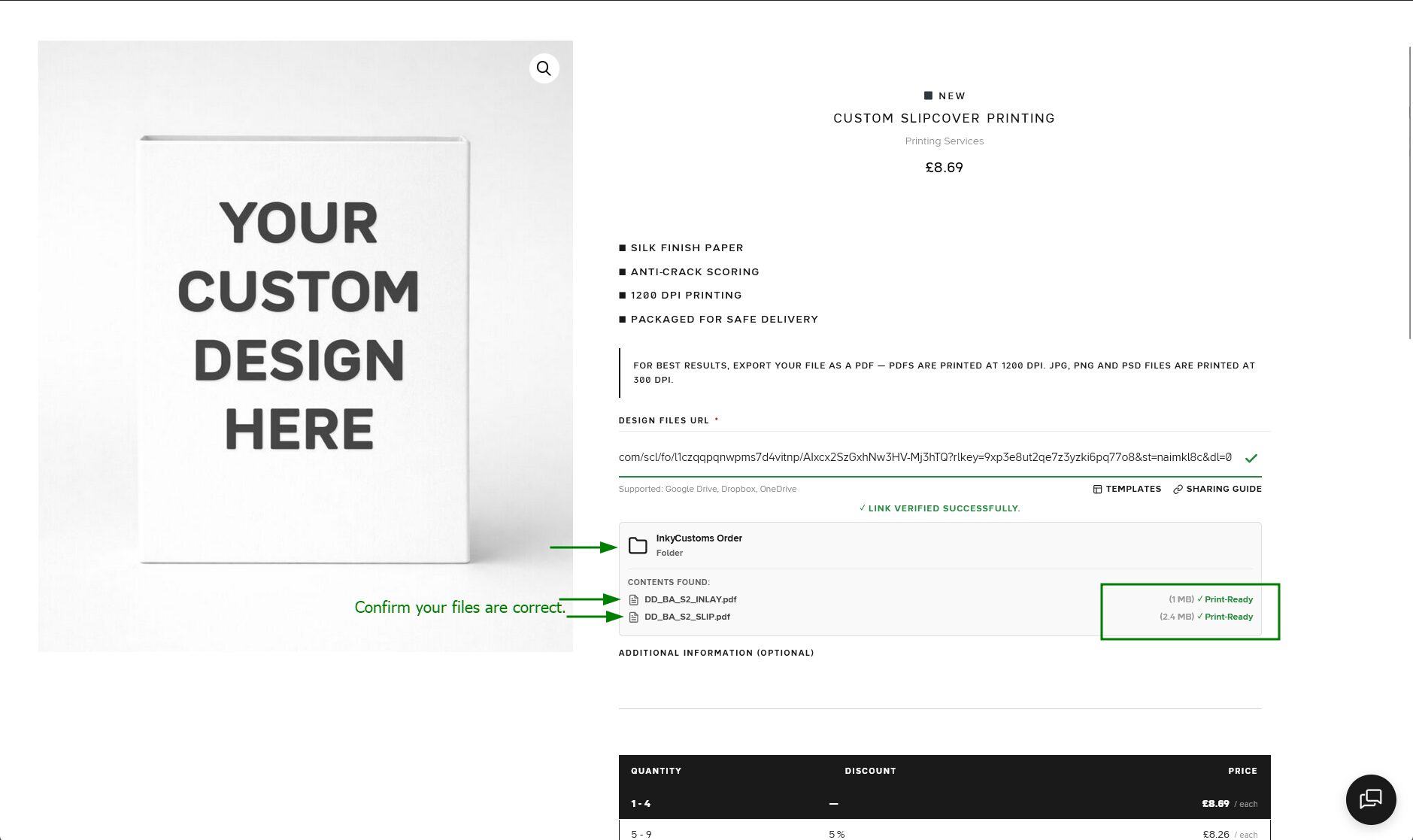
Step 8 — You should see Link Verified Successfully with your folder name and files listed
After pasting the link, you should see a Link Verified Successfully message with your folder name and uploaded files listed below.
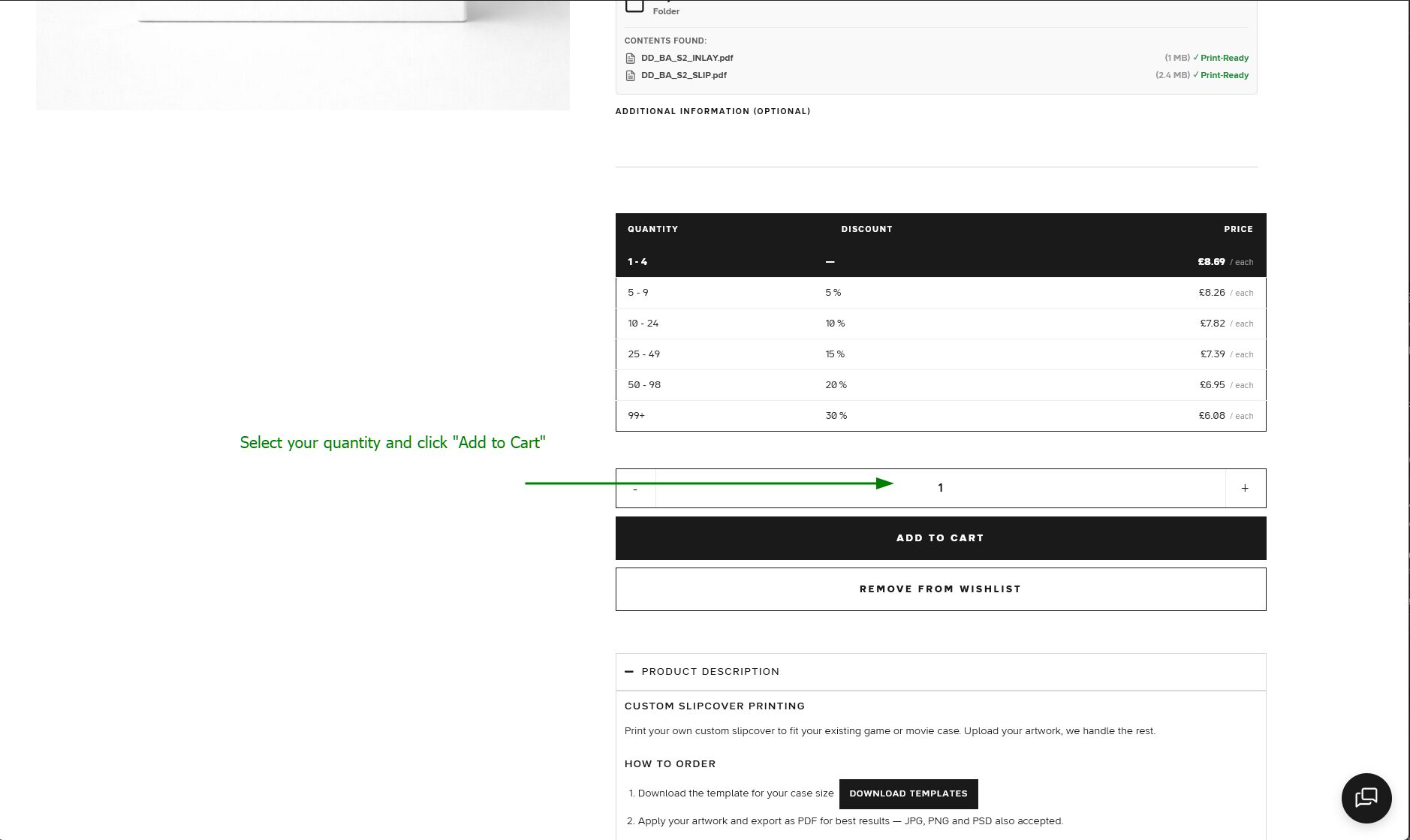
Step 9 — Select your quantity and click Add to Cart
Choose your desired quantity and click Add to Cart to complete your order.
Having trouble? Contact us and we’ll be happy to help.